|

WiFi 802.11 Robot Control Support Page

Communicate with and program your micro-controller, wirelessly, using our WiFi 802.11 System. We figure the best way to help with this topic is provide a picture.
|
|
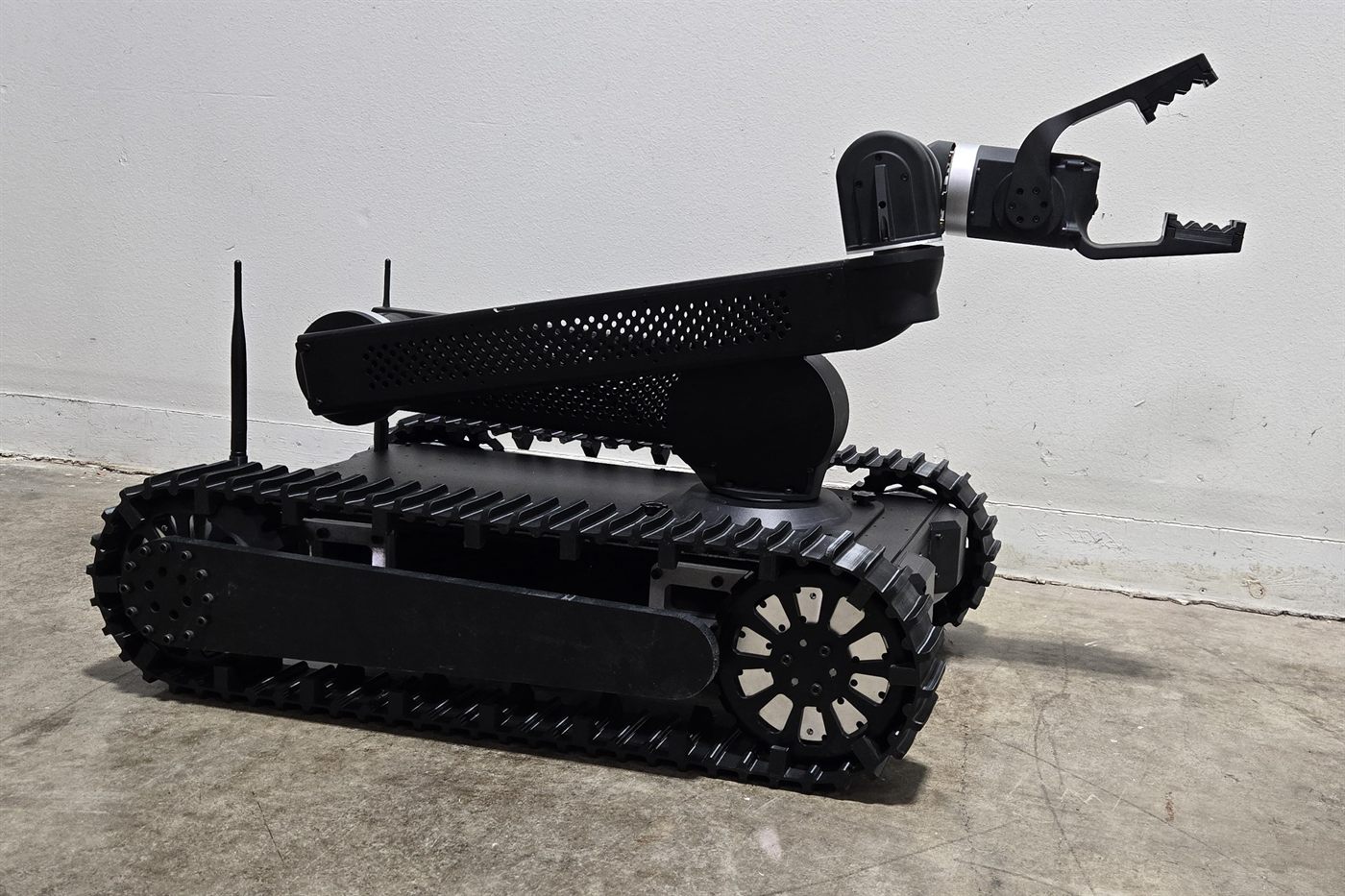
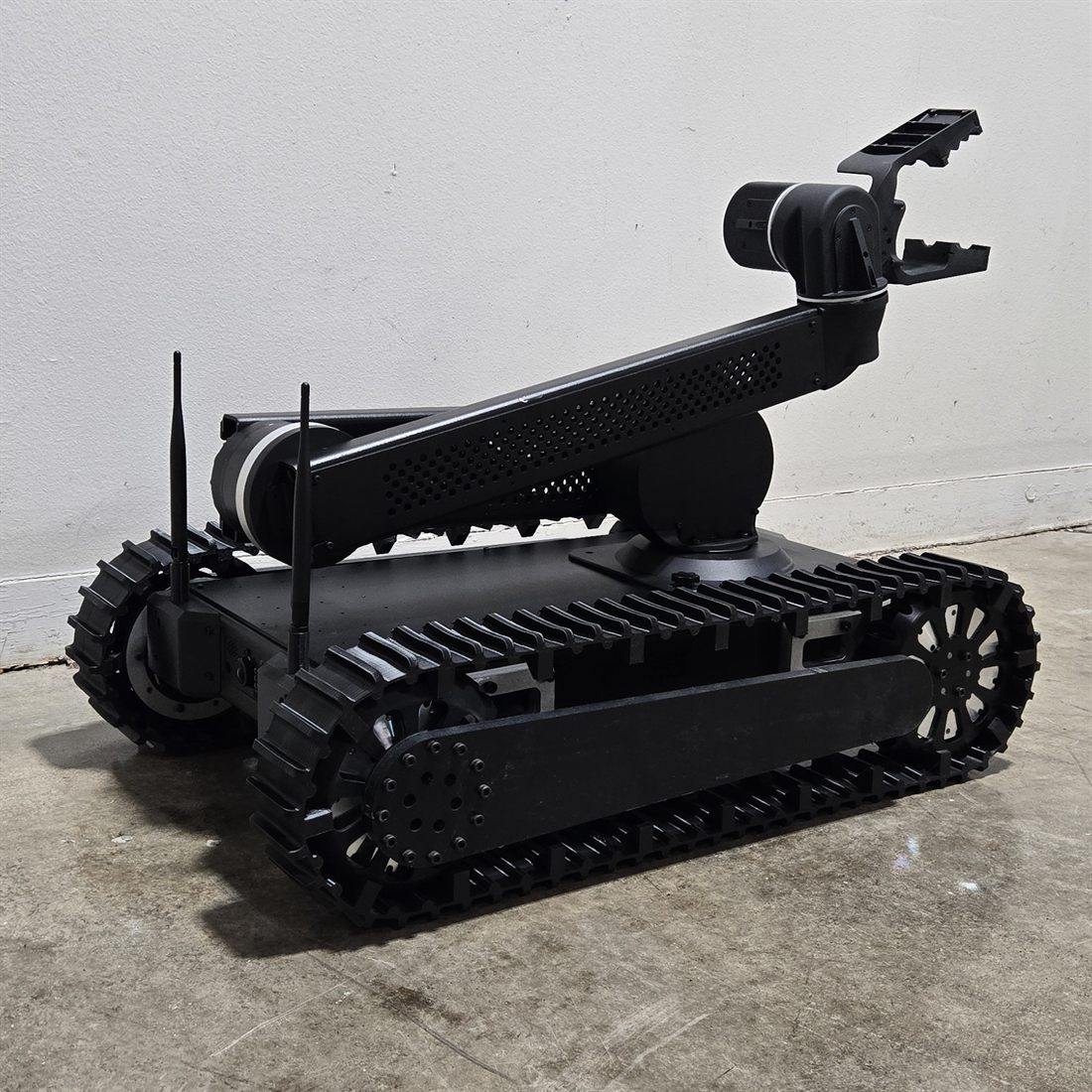
Typical WiFi ATR Robot
|
 |
|

|
|
(Click on image for lager view)
|

|
There are a lot of robot control system out there. WiFi has been around for a long time now and most home users have a wireless router.
The WiFi Part of it....
Some controllers have a wireless cards/access built into them, using this technique you end up having to configure each wireless device such as the controller, camera, etc. We use a proven and reliable Buffalo Wireless Bridge with 4 Ethernet ports. This allows you to put up to 4 network devices (more if you want to put in a low cost switch), but you only have one wireless piece of equipment to easily configure. The Buffalo Wireless Ethernet Bridge we use is easy to set up. Once its set up all your Ethernet devices simply plug into it and run as though they are wired to your main network router (except its wireless - WiFi). From there you can easily port out and access your devices from anywhere over the internet. Look at the example hookup
figure to the right.
The Controller...
Since the wireless bridge is taken care, all you need is any standard network device. We utilize a IPocket232 to take the Ethernet to RS232 so it can link with almost any microcontroller. Using the OOPic you can then control the robot using SCP from any PC on your network. If you have two RS232 devices, such as the OOPic and a GPS, you can use the Ether232Duo.
Cameras...
For those that want cameras, we have the iCam web server system. Each web server can handle 2 cameras. The web server just plugs into the back of the Ethernet bridge and you can then access and control the cameras from the wireless network or internet.
|
Example WiFi Robot Configuration 
(click on image for larger view)
|

 |
 |
|
| Std 4WD ATR with set up to run wirelessly using WiFi. The Wireless Bridge, RS232 to Ethernet converter, and IP camera with pan and tilt. |
Bottom view of the WiFi ATR showing the motors, motor controllers, batteries, OOPic, and wiring |
.

| This is a schematic of the Wireless RS232 system. A WiFi schematic is coming soon. You can view this as a PDF here. |
 |

We recommend you set most of this up using the supplied AC transformers, etc prior to building the entire robot and getting ready to do it. Below are the recommended steps to get you going.
| Set up the Buffalo Wireless Bridge. It comes with a CD that helps you get things going. Its up to you if you want to use a static IP or have the bridge find an available IP address on your network. Using dynamic will make the boot up a little slower as it sets itself up. If you use a static, make sure you do not overlap with any address on your network. Keep in mind, this is your local network typically 192.168.xxx.xxx. Once the bridge is set up you do not need to access it anymore, it becomes a transparent device, which is what makes it great. |
|
Set up the iPocket232. You will need an available RS232 port on your PC and a program such as HyperTerminal to configure the converter. It is recommended you use a static IP address here so you do not have to keep looking for it each time the robot powers up. If you use a static, make sure you do not overlap with any address on your network. Keep in mind, this is your local network typically 192.168.xxx.xxx. Refer to the manual of the iPocket232 for more details. Refer to the image to the right for a screen shot of how we set up ours.
Plug the Ethernet converter into your network. Its best to connect directly to your router here, you can test it through the wireless bridge in the steps below. If you type in the IP address you configured in step 2, you should get a default page of the iPocket232. Refer to the manual of the iPocket232 for more details.
|

|
|
Set up a virtual com port. One method is to set up the device as a serial port using programs such this freeware HW VSP - Produced by www.HW-group.com. Once its set up you should be able to open up that com port in HyperTerminal or similar. Then plug the RS232 from the iPocket232 into your computer or another computer on the network and open up another instance of HyperTerminal using your RS232 Com Port.
To test it, you should see what ever you type on on terminal show up on the other terminal. Refer to the images on the right to see how we set up our virtual com port.
|
 |
 |
| Plug the IP camera server into your network. Its best to connect directly to your router here, you can test it through the wireless bridge in the steps below. Setup the IP camera. The software disc that comes with the IP camera will auto detect the camera. It is recommended you use a static IP address here so you do not have to keep looking for it each time the robot powers up. If you use a static, make sure you do not overlap with any address on your network. Keep in mind, this is your local network typically 192.168.xxx.xxx. Refer to the manual IP camera for more details. When you type in the IP address you should get the camera IP camera server main page,
then you can select the camera you wish to view. |
| Now all your needed devices are set up, unplug them from the network and plug them into the wireless bridge. They should work just the same as they did when plugged into your wired network, only they will be getting routed though your wireless bridge and the activity lights on you bridge will start blinking etc. |
| Unplug all your devices and wire your robot per the schematic. When your robot is powered on the wireless bridge will take several seconds to boot up and connect to the network. You now have a mobile platform set up to run on you wireless network. To control the camera you use the camera controls. To drive the robot you can use our SCP software and an OOPic-R or II+ connected to the iPocket232 to drive and monitor your robot. A screenshot is shown to the right. |

|

OOPic SCP Interface Program
One of the neatest features of the wireless interface is you can control the OOPic with SCP (Serial Control Protocol). We have developed a program to help you do this. The program has many features. Click on the image for a screen shot of some of the functions. The program comes with its own help file, which you can download to see what's involved with the
program.
|
|